
How to connect to a lab in 3Shape Unite
07/11/2023For Unite 24.1 (Unite 1.8.1.0) and higher
Step 1: Open 3Shape Unite, select the More tab, and in the dropdown menu select Store.

Step 2: Go to Labs, click Add connection button and type in details of the lab you want to connect to. You can search by name, address and email address or phone number.
Labs that require account pairing are excluded. If you want to connect to a lab which requires account pairing, go to ‘All labs’, search for the lab and click ‘Connect’.

Step 3: Once you have entered the details of the lab, choose the lab you want to connect to from the search results and click ‘Connect’. The connection request has been sent and will have to be approved by the lab. Once the lab has approved your connection request, your option to ‘Cancel request’ will change to ‘Disconnect’.

For Unite 23.1 (Unite 1.7.80.0 to 1.7.83.0) and lower
Please be informed that although DentalDesktop 1.7.83.0 and earlier versions are still used by some 3Shape customers, this software version will reach it's End-Of-Life stage in 2027. Please ensure that customers’ systems are updated to the latest available version.
Step 1: Open 3Shape Unite and go to ‘More’ and then click ‘Store’.

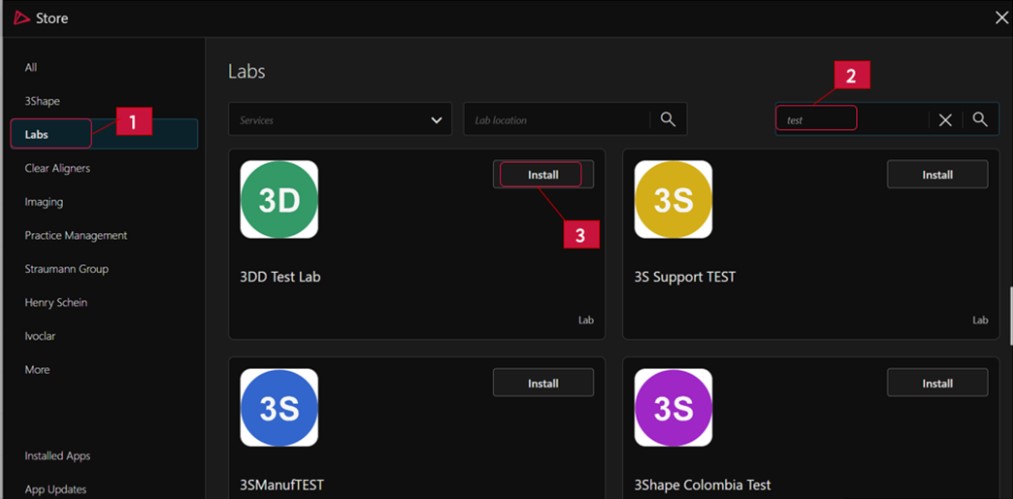
Step 2: Go to ‘Labs’ and search for the lab in the search field. Once you have found the lab, click ‘Install’. You have now triggered a connection request which will have to be approved by the lab. Once the lab has approved your request to connect the status on the lab will change from ‘pending’ to ‘installed’.
Contact 3Shape Support if you have any further questions.
For full information on correct usage consult the official Safety and Setup Guide and the most current Manual.