
Types of Error Messages When Scanning with a Lab Scanner in 3Shape ScanIt Dental
09/11/2023ScanIt Dental is the application used by 3Shape Dental System to communicate with the scanner and manage scan parameters during the scanning workflow.
Various errors may occur during startup or scanning. The most common cases are listed below.
Common Error Types
Type 1: ScanIt Dental does not start
When starting a scan, ScanIt Dental does not open and the following error appears:
"The scanner did not make any output files"

Type 2: Internal application error
When starting or during scanning, the following error appears:
"Object reference not set to an instance of an object"

Type 3: ScanServer or calibration error
When starting ScanServer, during calibration, or during scanning, the following error may appear:
"ReadFromRegister error, address 0x****"

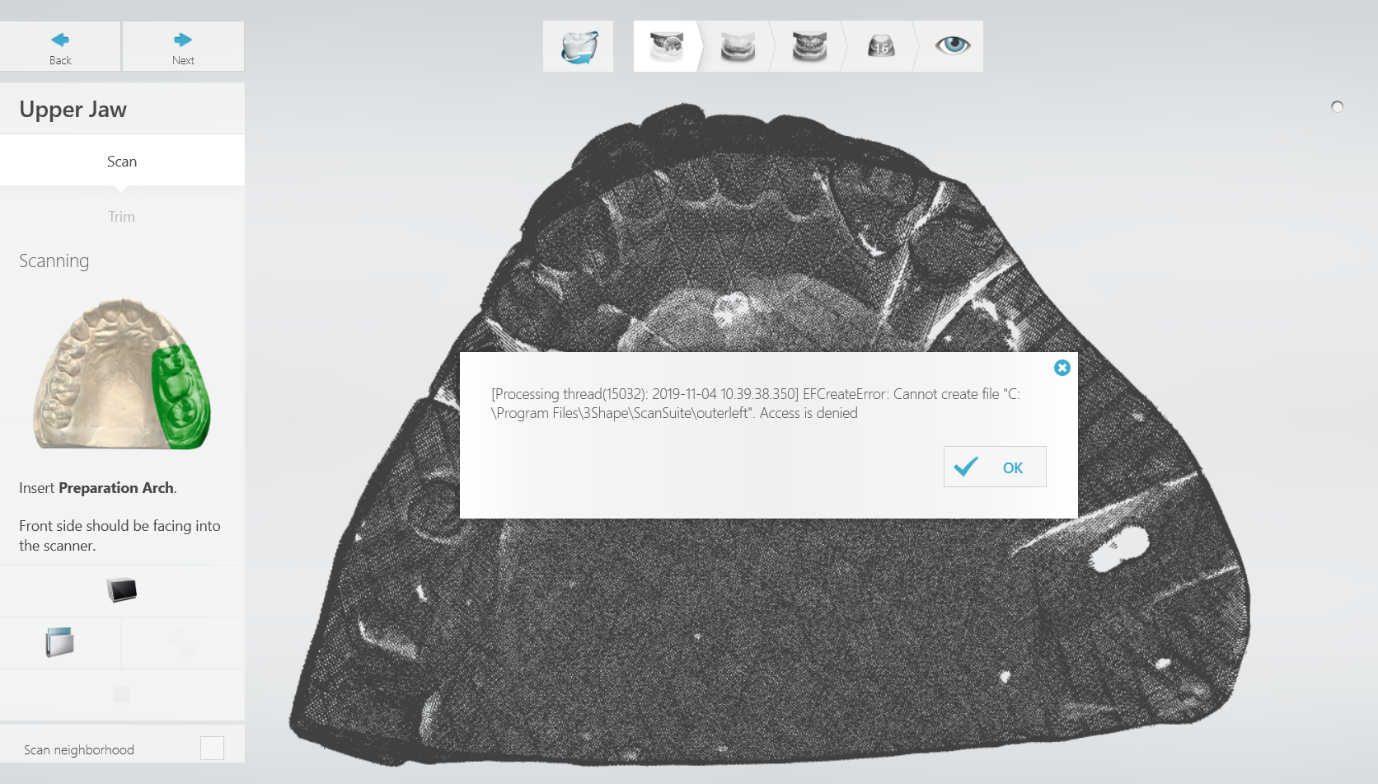
Type 4: File creation / access error
The following error appears during scanning:
"EFCreateError: Cannot create file 'C:\Program Files\3Shape\ScanSuite\outerleft'. Access denied"
Common Root Causes and Solutions
Cause 1: PC does not meet system requirements
If the PC does not meet system requirements (especially GPU requirements), errors may appear during scanning or post-processing.
Solution:
- Check the latest PC catalogue on the 3Shape Partner Portal or Dental System User Manual.
- See the article “Requirements for ScanIt Dental in DS-2019 and later” as newer versions of the software are more demanding in terms of PC resources.
Cause 2: Missing or outdated system components
ScanIt Dental requires several Windows components that are installed with Dental System but may require updates.
Solution:
- Ensure the following components are installed:
- Visual C++ Redistributable 2015 or later
- SlimDX
- .NET Framework 4.6.1 or later
- Install all available Windows Updates.
- Ensure all graphics card drivers are installed and up to date. To learn how, refer to the article “How to update NVIDIA graphics card drivers” (or the relevant GPU driver update guide for your system).
Cause 3: Insufficient permissions or blocked folders
ScanIt Dental requires full access to system and network folders. Missing permissions or firewall restrictions may cause failures.
Solution:
- Follow the steps in the article “What folders are shared during Dental System Server installation” to make sure all the listed folders are shared and have full permissions,
- Use “What are the firewall rules for 3Shape Dental System” article to discard any potential firewall blocks.
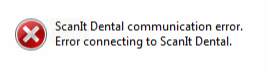
Cause 4: ScanIt Dental communication error during startup
This issue may occur if scanning is started immediately after Dental System launches, before ScanIt Dental has fully initialized.
Solution:
- Restart Dental System.
- Wait until the ScanIt Dental icon appears in the Windows system tray before starting scanning.
Contact 3Shape Support if you have any further questions.
For full information on correct usage consult the official Safety and Setup Guide and the most current Manual.