
Upgrading to Unite 24.1 from earlier versions
12/04/2024Unite 24.1 is the workflow software that brings you fully up to date with the latest technology in our workflow software. It brings you cloud storage, a cloud-based app and web portal, and the ability to work from anywhere.
Updating from version older than Unite 23.1
It's not possible to update directly to Unite 24.1 from a version older than Unite 23.1, as this version is an important pre-requisite for updating to Unite 24.1.
The supported sequence of updates is the following:
- Update from Dental Desktop (pre-Unite version) to Unite 21.1
- Update from Unite 21.1 to Unite 23.1 - see this article to learn how.
- Update from Unite 23.1 to Unite 24.1 - see below steps.
Updating from Unite 23.1
Before upgrading, ensure that the upgrade is performed by a user with the 3Shape Account Administrator role. This user is responsible for setting up the company and inviting other 3Shape Account users to join the organization.
What will happen during the update?
- Local data from your device is backed up.
- Licenses are transferred from your dongle to the cloud.
- Your Data (patients, cases, files and settings) is uploaded to the cloud - if the administrator of your 3Shape Account Company consents to using cloud storage.
Changes you will see after the update
Data handling in the cloud
Local data is mirrored to the cloud immediately after login into the updated 3Shape Unite. If there are several devices registered in your 3Shape Account company, all data from all devices will be stored in the cloud. This caters for a disaster recovery scenario. Any data handling (downloading, uploading), state (‘downloaded’ or ‘in progress’) and change (new version of the case), as well as Cloud status for a device is visualized with new icons in 3Shape Unite.
New Licenses page in 3Shape Unite Store
3Shape Unite Store introduces a new page, where you can see all your 3Shape app licenses and subscriptions they are included in. Only licenses that are in the cloud (i.e., licenses for 3Shape apps in 3Shape Unite) will be visible on that page. The licenses that remained on the dongle will not be visible.
In 3Shape Unite Store it’s possible to transfer more dongles or retry transferring a dongle that had an issue during the initial transfer. In 3Shape Unite Store it is also possible to activate new cloud-based subscription via activation code.
Important
- Just like other cloud-based solutions, 3Shape Unite 24.1 always needs a stable internet connection to fully utilize the benefits of cloud storage and have uninterrupted access to app licenses in the cloud.
- Starting from 3Shape Unite 24.1, it will be not possible to select your country manually upon installation of a new device. If your current country selection in Unite doesn’t match with the country in your 3Shape Account company, you will be blocked from updating to 3Shape Unite 24.1 and need to contact Support for further assistance.
- Make sure to have Windows updated before starting the upgrade progress.
Preparation checklist
- Set aside 1.5 hours
- Decide who is the Administrator of all accounts
- Check if you need client server or standalone installation
- Check that you have stable internet and meet minimum system requirements
- Make sure that you perform this during 3Shape Customer Support hours
Update steps
Step 1: Once 3Shape Unite 24.1 is available for your system, the system will automatically start downloading the update files in the background. Once the download has finished, click on the pop-up message in the lower-left corner of your screen, informing that a new update is available.
Step 2: You will be redirected to the Unite Store, where you will see that the files for updating your 3Shape Unite and other apps have been downloaded. You can proceed by clicking Update all.

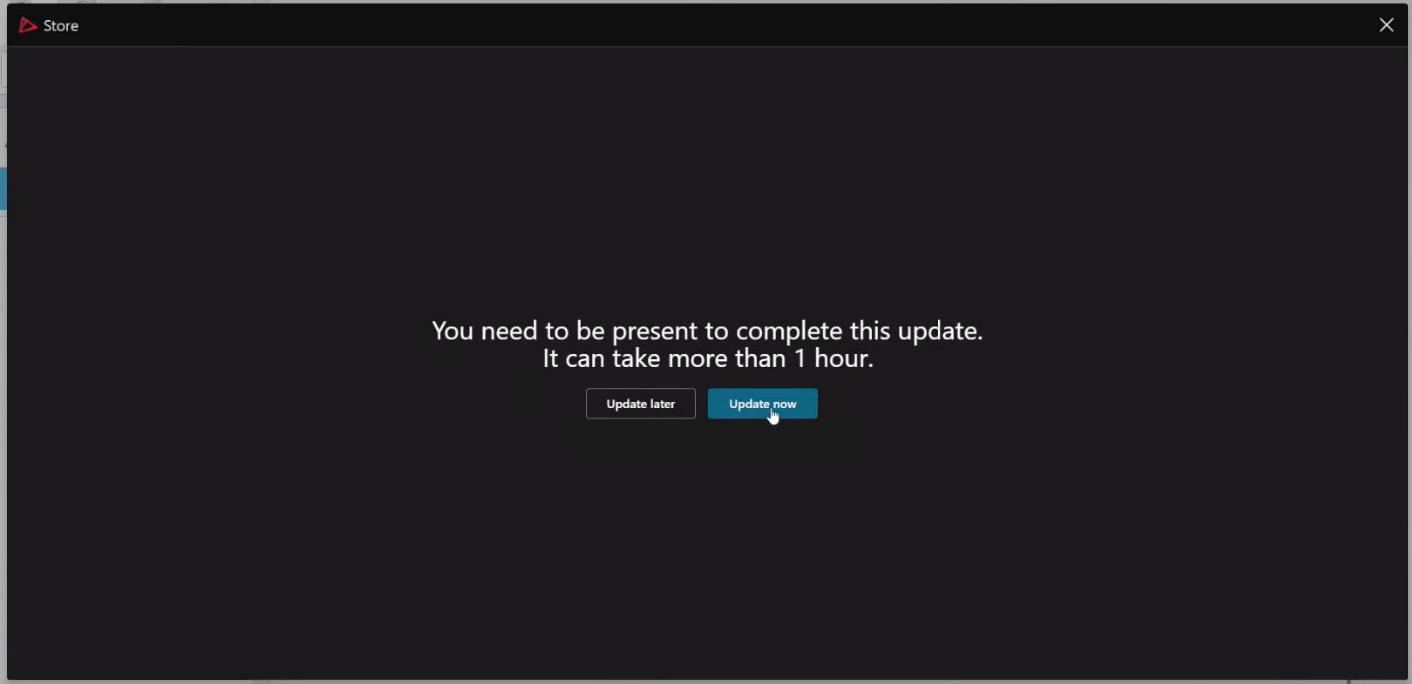
Step 3: Prior to updating, you will see a warning that indicates the estimated time this process will take (more than 1 hour) and that user interaction is required throughout the update. Press Update now if you are ready to proceed (and have reviewed the preparation check list above), or choose to update later.
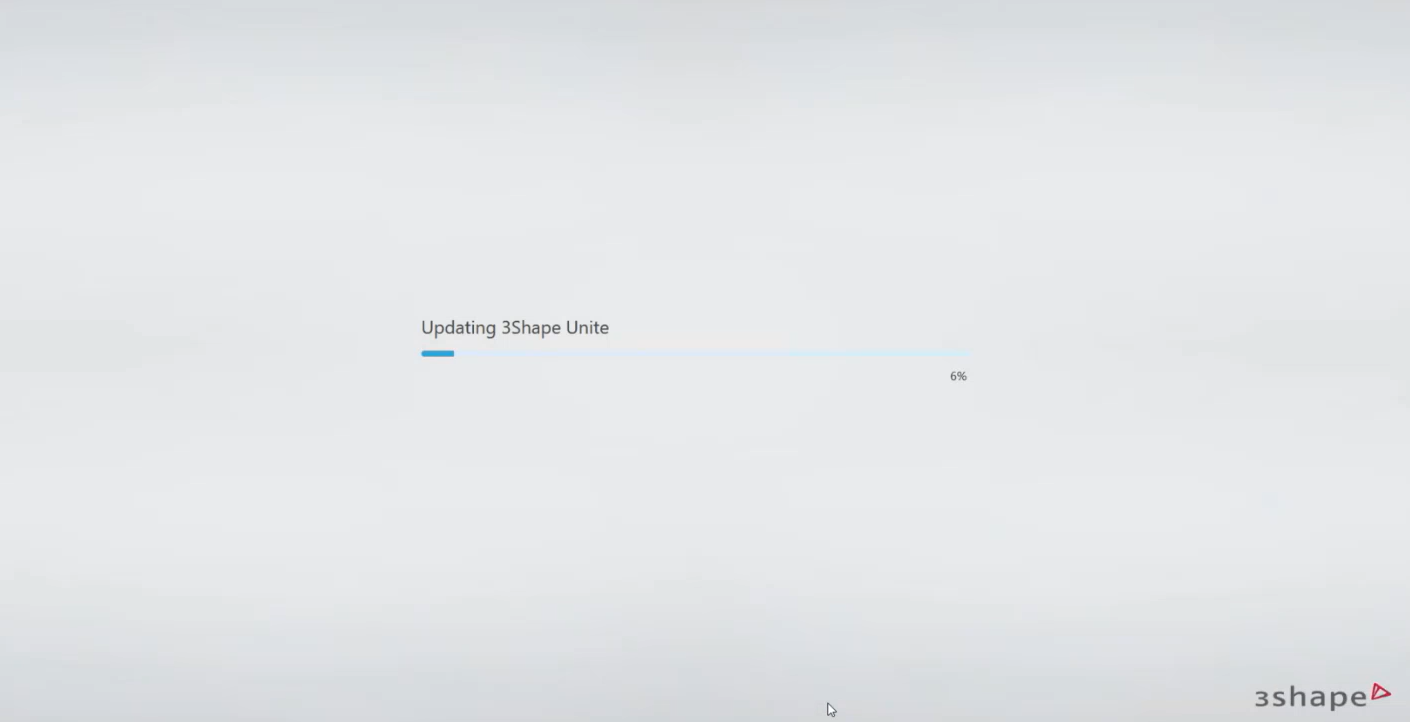
Step 4: The update process will start, you will see a progress bar where you can check the progress.
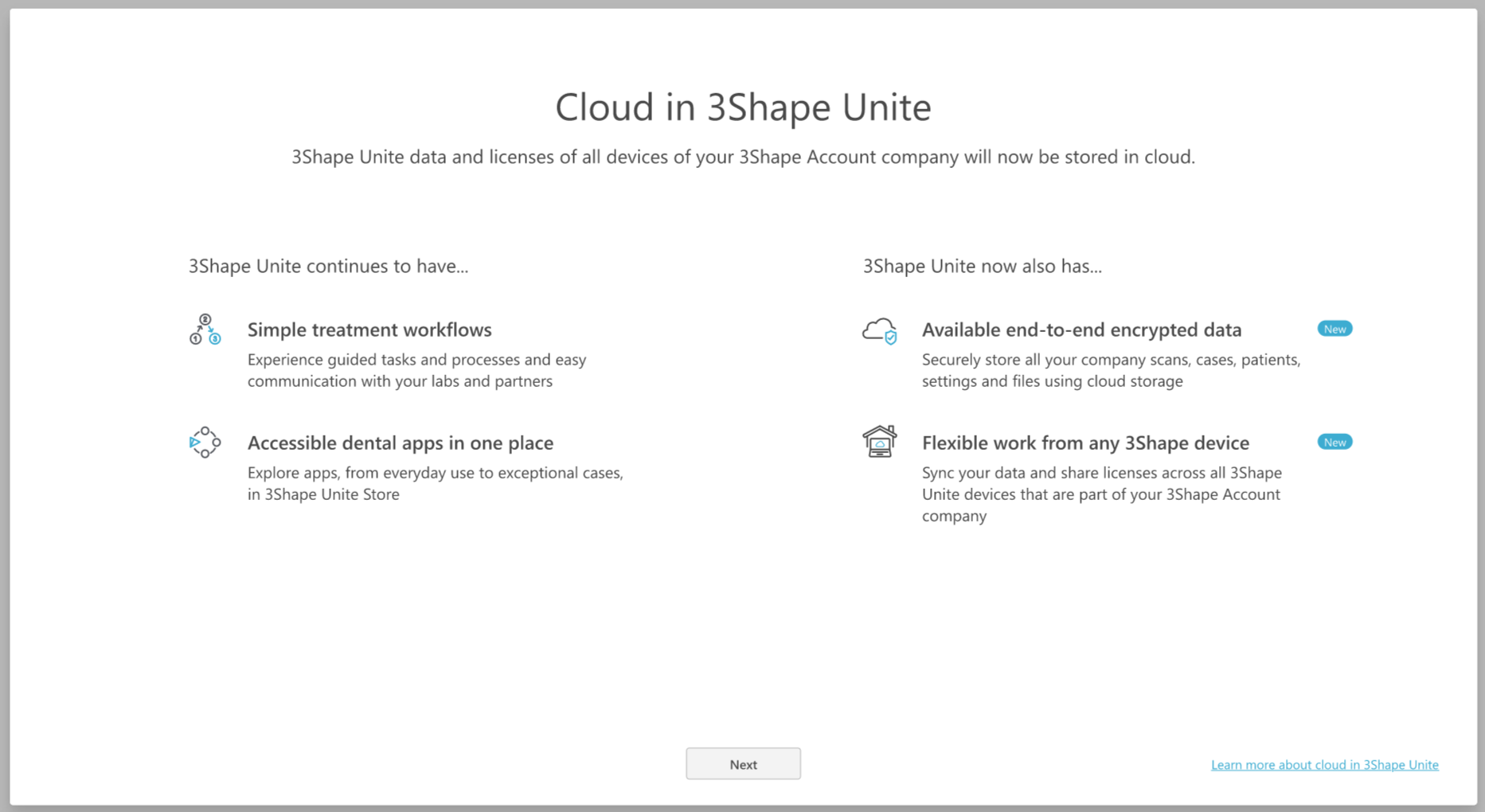
Step 5: After the update process has finished, 3Shape Unite 24.1 will open automatically and show an information screen about the new cloud features in addition to the existing functionality of 3Shape Unite. It will be shown only once per device after the update. Press Next to continue.
Step 6: Once the update process is completed, the Administrator of your 3Shape Account Company needs to log in first.
When migrating information to Unite 24.1, keep in mind that a user can belong to multiple companies. When you reach the step below, make sure to select the correct company where you want to migrate the information and its licenses.
Although a user may belong to several companies, the primary company will always appear by default.
Step 7: After logging in, the Administrator will have to choose the storage type (cloud or local) on behalf of the whole company. The software will pre-select the option to “Enable cloud storage” but if you would like to refrain from using it, you can select the option "Disable cloud storage" and store your data locally.
After choosing the storage type, the Administrator will have to accept several more agreements and terms & conditions.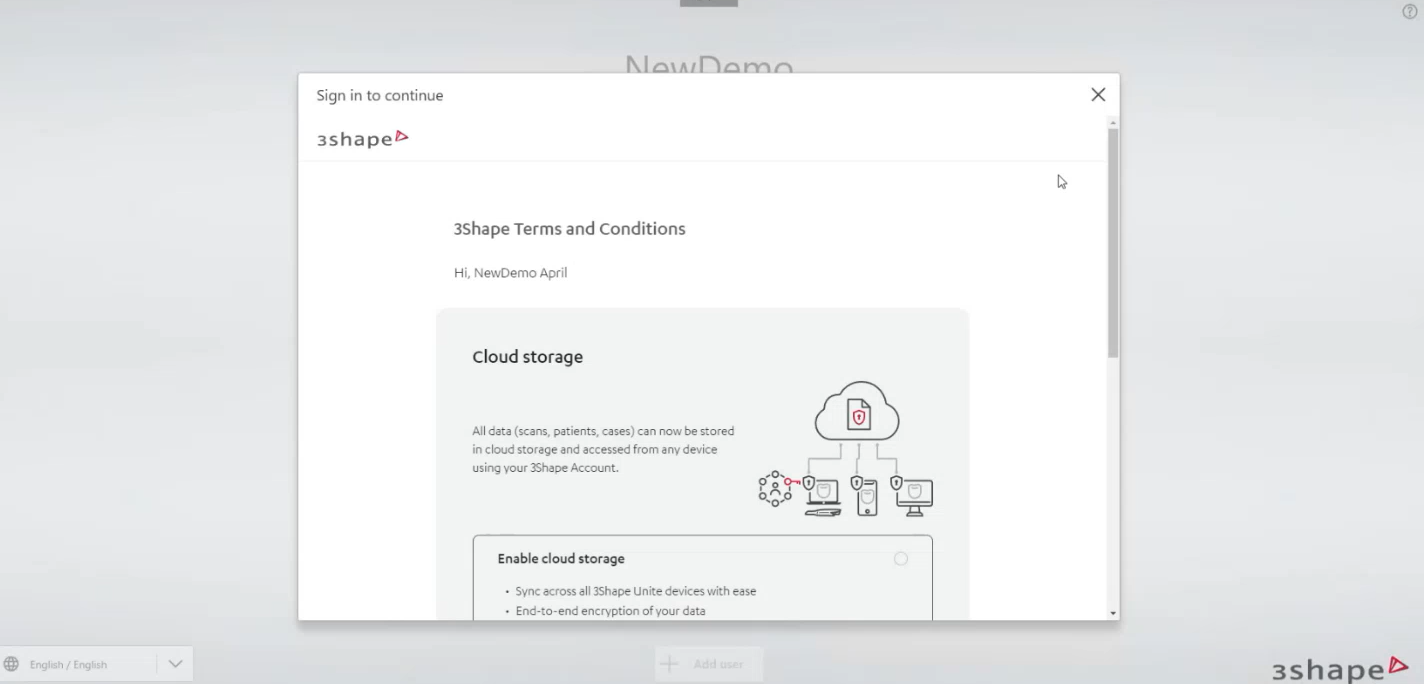
Step 8: Once you have signed the required agreements, 3Shape Unite will finalize setting up after the update. 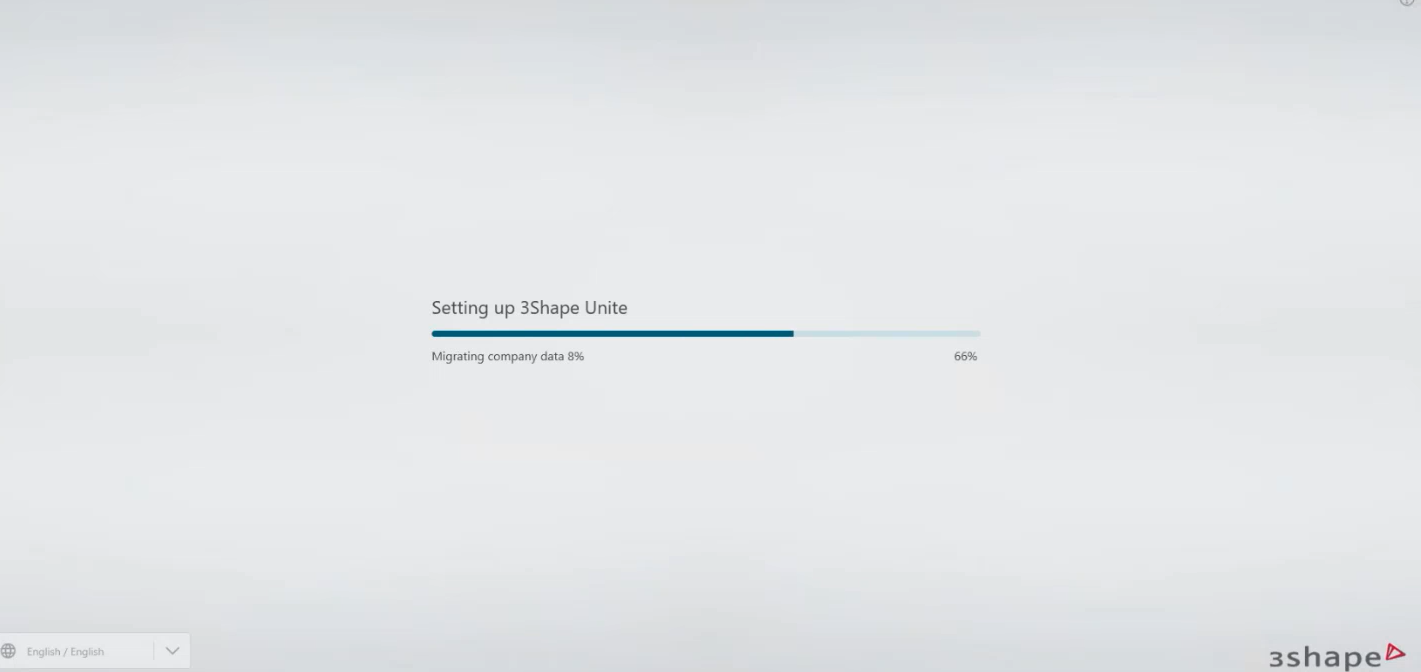
Step 9: The next step is to move your licenses from the dongle to the cloud. You will see a window showing the dongle(s) detected in your device and you should press Move to start transferring your dongle on to the cloud. 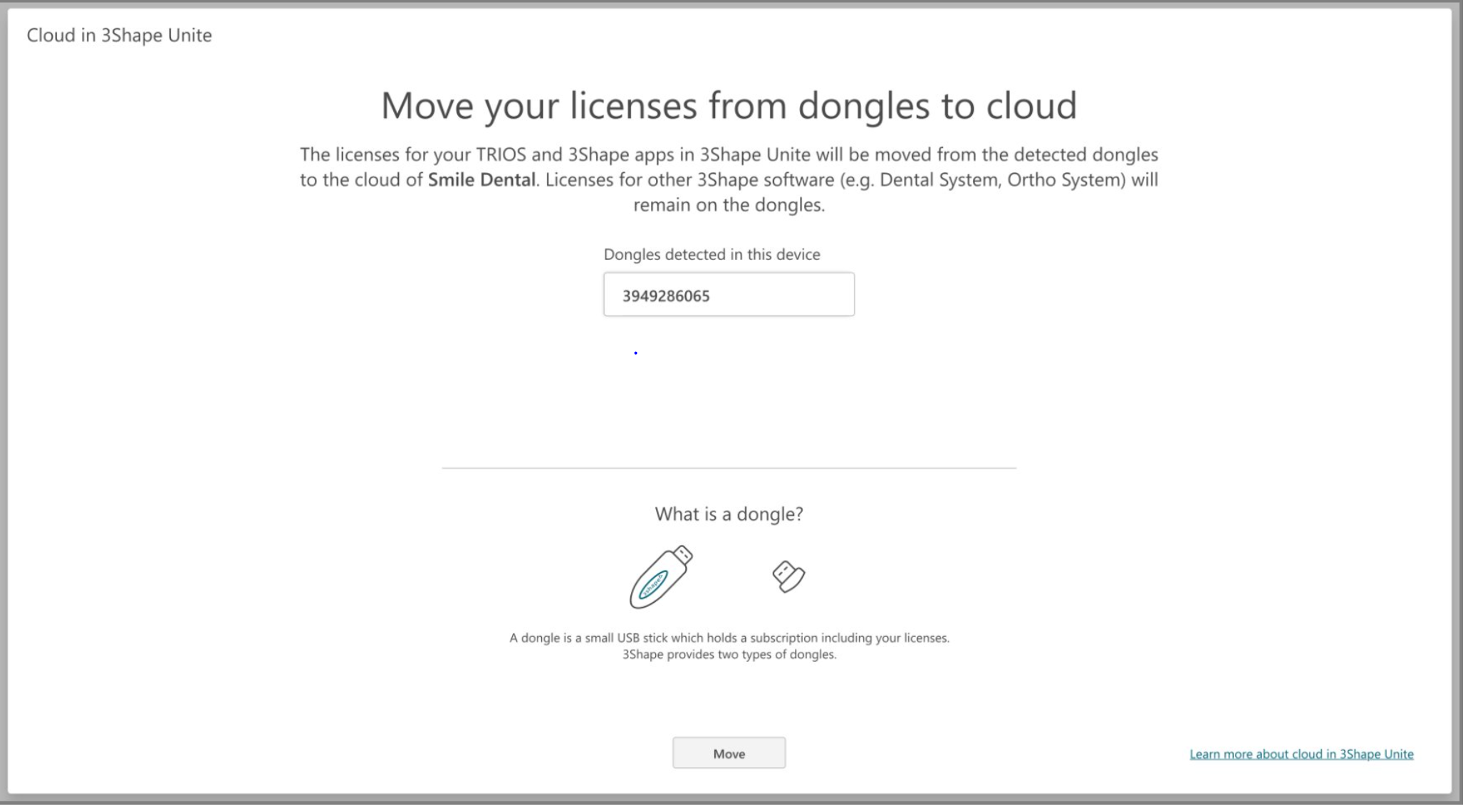
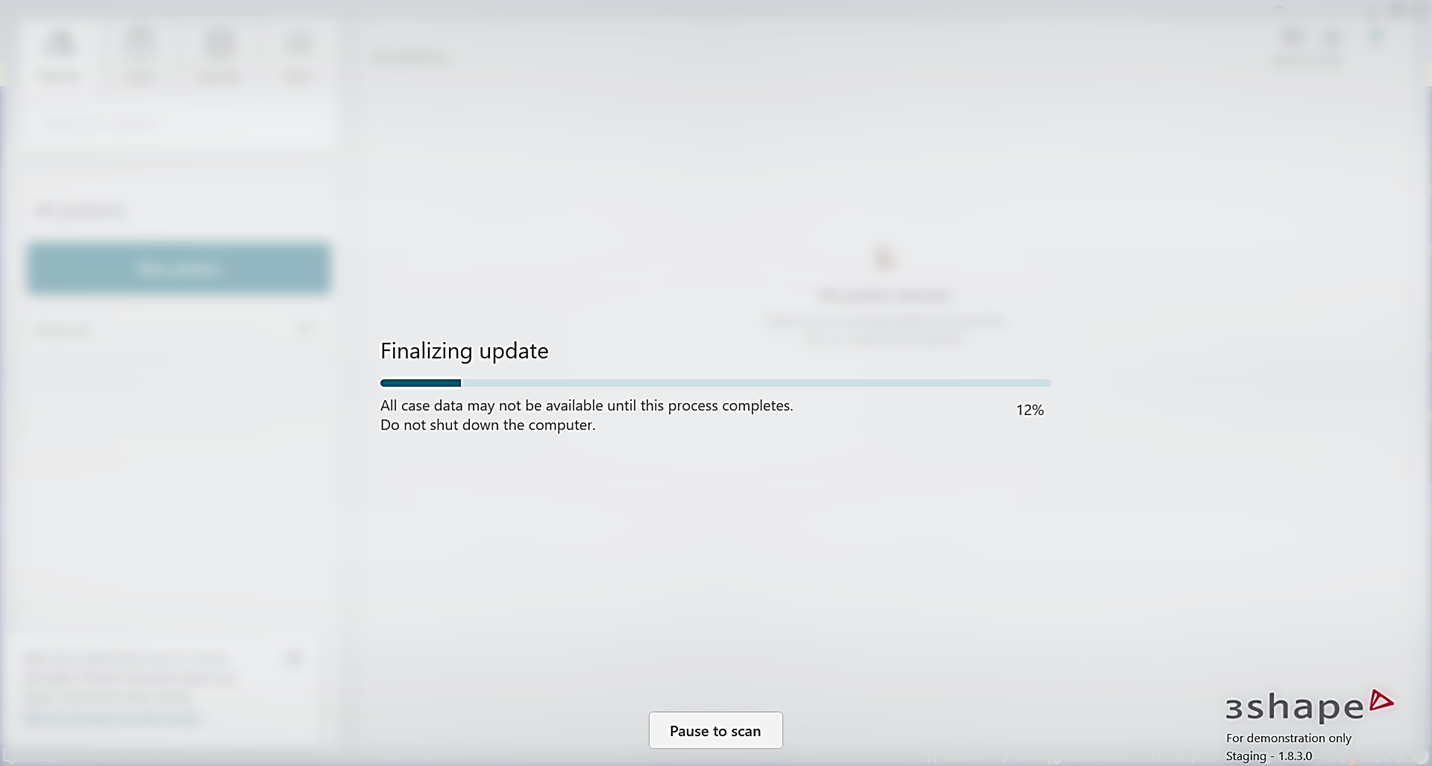
Step 10: After the licenses have been successfully moved on to the cloud, 3Shape Unite will need a bit more time to finalize the update and prepare the cases to be used in the new software architecture. During this process it's not possible to work in Unite, and it will happen for all users regardless of their choice of storage type - cloud or local. If there is a critical need to scan a patient, it's possible to pause this process to make a scan, and afterwards the process will resume automatically.
Contact 3Shape Support if you have any further questions.